
Create · Download · Present
How to add an animated chart to PowerPoint
Create and export your chart
Choose a chart in the free animated chart maker. Enter your data or upload a CSV, adjust the title and appearance, and play the animation. Select Download MP4 and save the video.
Insert the video on a slide
In PowerPoint for Windows, select your slide and choose Insert → Video → This Device (called Video on My PC in some versions). Select your MP4 and insert it. On Mac, use Insert → Video → Movie from File. Menu names can vary by version.
Choose when it plays
Select the video, then use Playback → Start to choose automatic playback or a click option. Test the result in Slide Show mode before presenting.
PowerPoint steps are based on Microsoft’s guides to inserting a video and automatic playback.
Make the chart readable from the back of the room
- Give the slide a takeaway. Use a headline that explains the result, such as “Tomatoes made up the largest harvest.” Put the data source nearby when you use real figures.
- Keep labels clear. Choose legible type, strong contrast, and a manageable number of categories. Preview at the size the chart will appear on your slide.
- Set a comfortable pace. Chart Poppers lets you adjust the animation duration from 5 to 15 seconds. Leave time to explain the finished chart.
- Check the actual presentation setup. Play the slide show on the computer you will use. Keep a PNG of the chart available for a static slide or handout.
MP4 for movement. PNG for a still chart.
The MP4 contains the animation and can be inserted as a video. A PNG contains the completed chart as a static image. The MP4 is not an editable native PowerPoint chart: change the data or artwork in Chart Poppers, export again, and replace the video on your slide.
Embedding the video keeps it inside the presentation, although it increases the file size. If you choose to link to a separate video file, keep that file available with the presentation.
Try it with these numbers
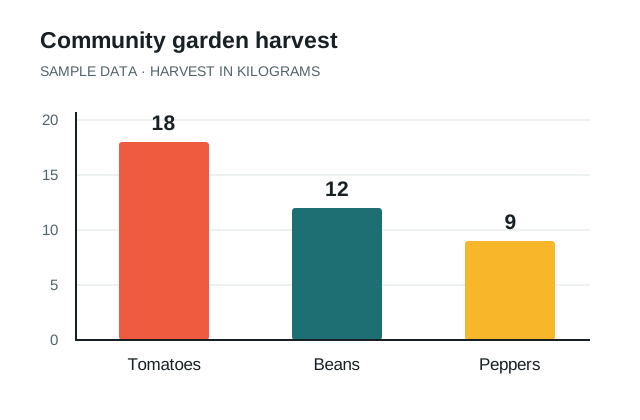
Community garden harvest
These made-up values are in kilograms. Paste the rows into the editor, or download the CSV and upload it.
Download sample CSV ↓Crop,Harvest (kg)
Tomatoes,18
Beans,12
Peppers,9Pick a style for your presentation
Whiteboard chart animations work well when you want to explain a result as it is drawn. Animated bar charts make category comparisons easy to follow. For a more specific story, describe the scene you want in the AI animated chart generator.
Start with the sample data above to practice the export and insertion steps, then replace it with your own figures.